Getting started
Start with a folder you already work from. Open it in Grain Photo, browse the photos, and try a search as they’re analyzed.
Open a folder
- Open Grain Photo and sign in.
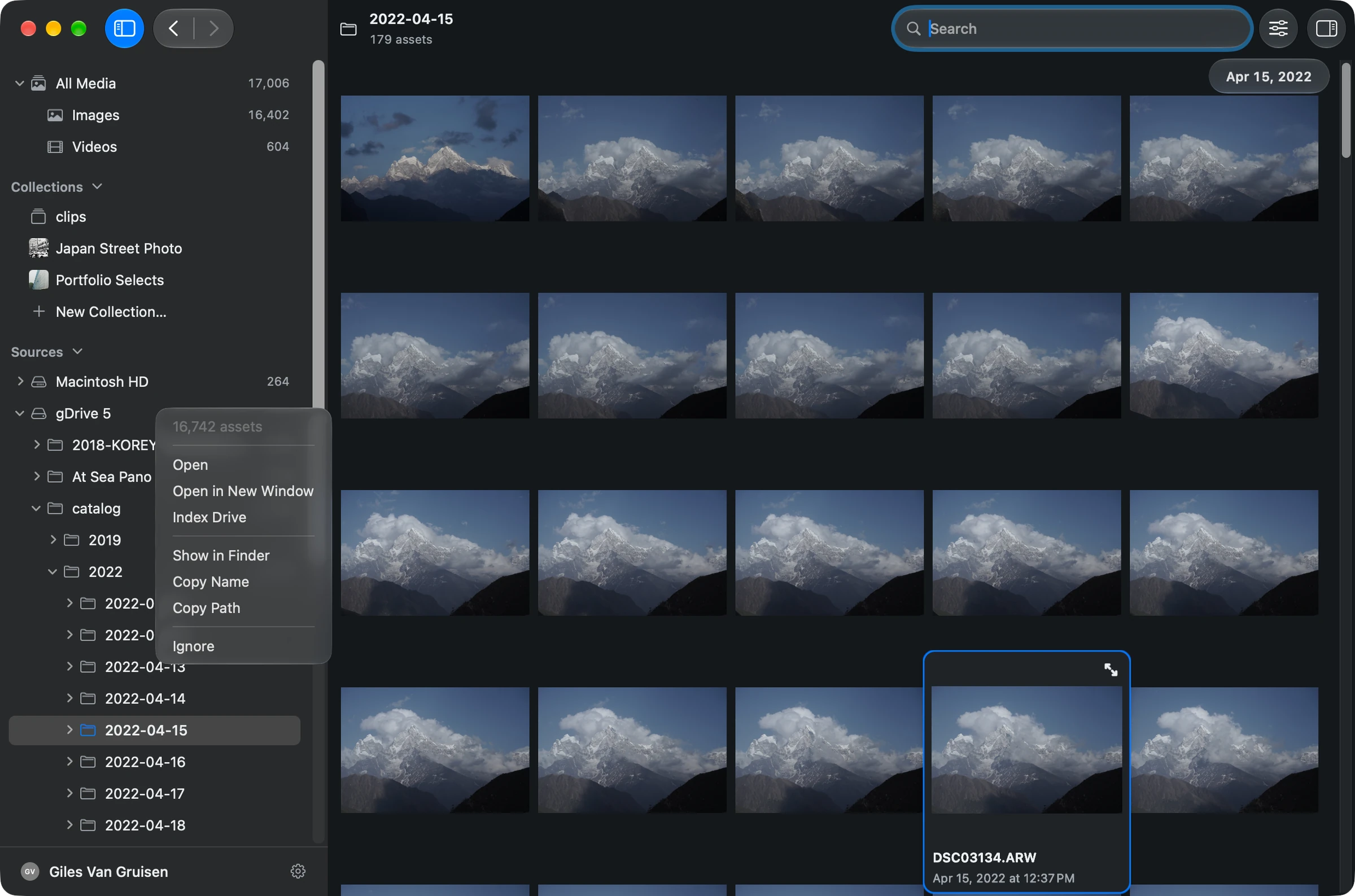
- Under Sources in the sidebar, click the arrow beside a drive to see its folders.
- Click a folder’s name to open it.
- If macOS asks for access, select the requested folder or drive and click Allow Access.
The gallery shows the folder’s media while Grain Photo scans it and its subfolders. Your files stay where they are. There’s no import or copying step.
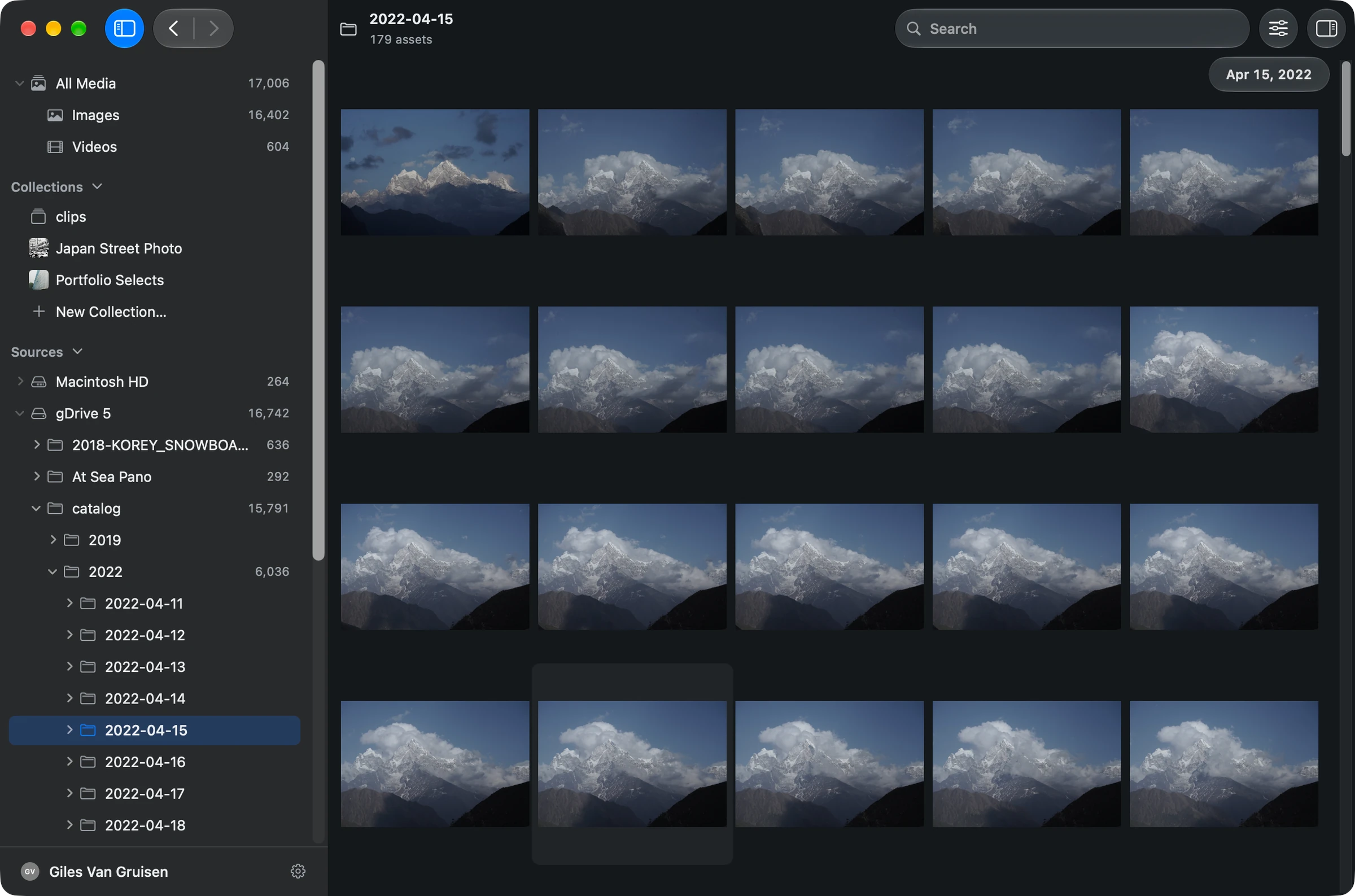
Clicking an arrow only expands the source tree. Clicking a folder’s name opens it and starts scanning. To work across the folders you’ve scanned, choose All Media.
Use ⌘[ to go back to the previous view and ⌘] to go forward again, like the arrows in the toolbar.
Check what’s ready to search
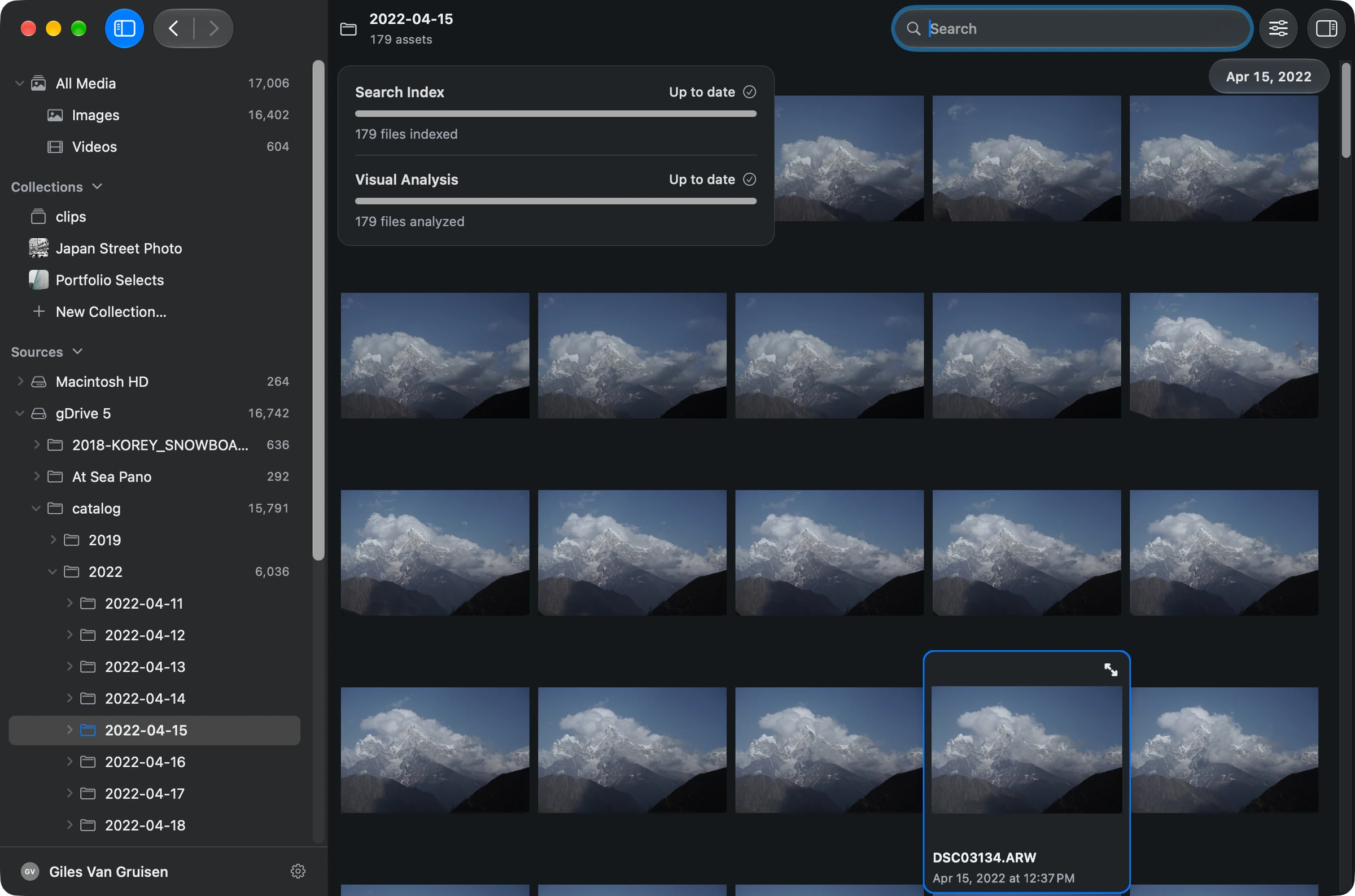
Click the folder name at the top of the window to see its progress. Search Index tracks the files scanned; Visual Analysis tracks the on-device analysis that lets you search by description or concept.
You can keep browsing while this runs. Search results build as more files are analyzed.
Enlarge a photo
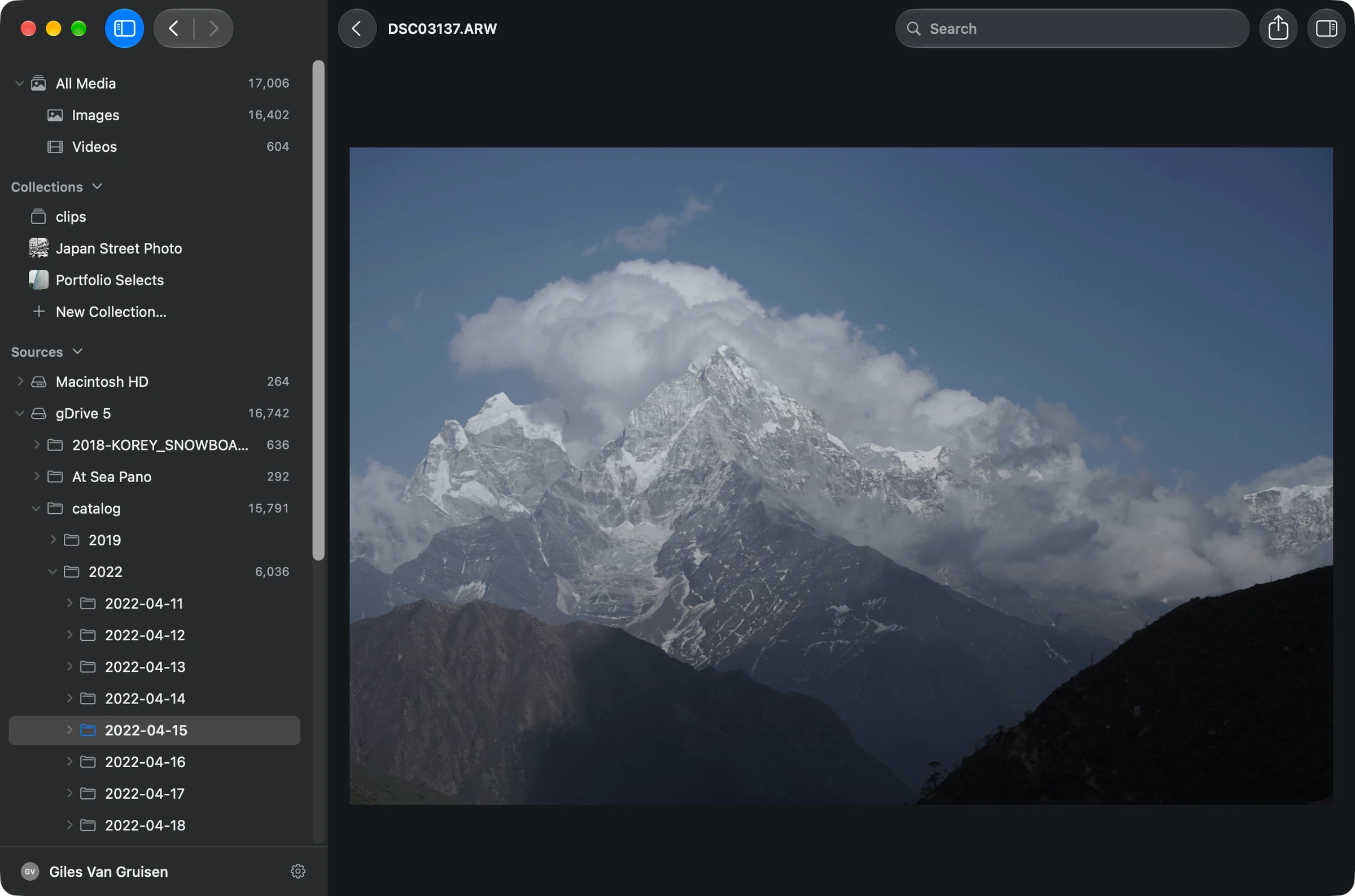
- Click a photo to select it, then press Space to enlarge it. You can also double-click it.
- Use the ← and → arrow keys to move between photos while they’re enlarged.
- Press Space again or Esc to return to the gallery.
Narrow the gallery
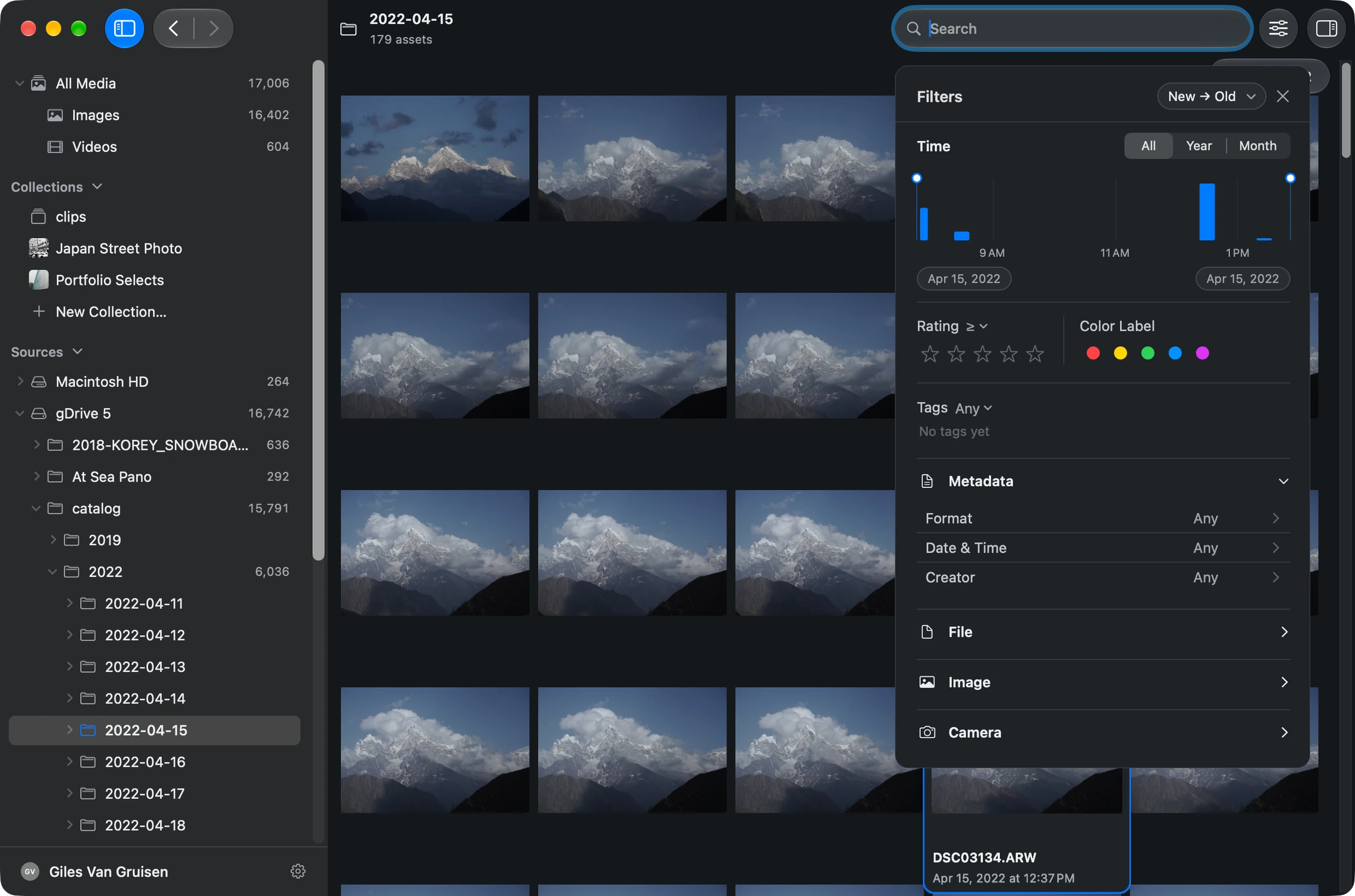
- Click the sliders button beside the search field to open Filters.
- Choose a date range, rating, or color label, or open a metadata category such as Camera.
- Select the value you want to show.
Filters apply to the folder or view you’re browsing. You can also use them with a text search.
Scan more folders while you work
To choose folders for scanning without opening them in the gallery, use File > Source Settings…. Click Add folder…, select the folder, and click Allow Access.
To scan a whole drive from the sidebar, Control-click it and choose Index Drive. Your current gallery stays open.
Try a search
Press ⌘F to focus the search field, enter a description such as “snow-covered mountains,” and press Return. Search works within the current folder; choose All Media first to search across your scanned folders.
Continue with Search for photos for examples and ways to refine the results.