Search for photos
Search your media with descriptions, concepts, or keywords. You can search across your library or within a particular source, then use Filters to narrow the results.
Open a folder in the sidebar to start scanning its media. Photos become searchable by description as they’re analyzed. For a walkthrough of opening folders and checking progress, see Getting started.
Run a search
- Choose All Media in the sidebar to search across your library, or select a source to search within it.
- Press ⌘F or click the search field at the top of the window.
- Enter a description, concept, or keyword, such as “sailing through fog.”
- Press Return to see the results.
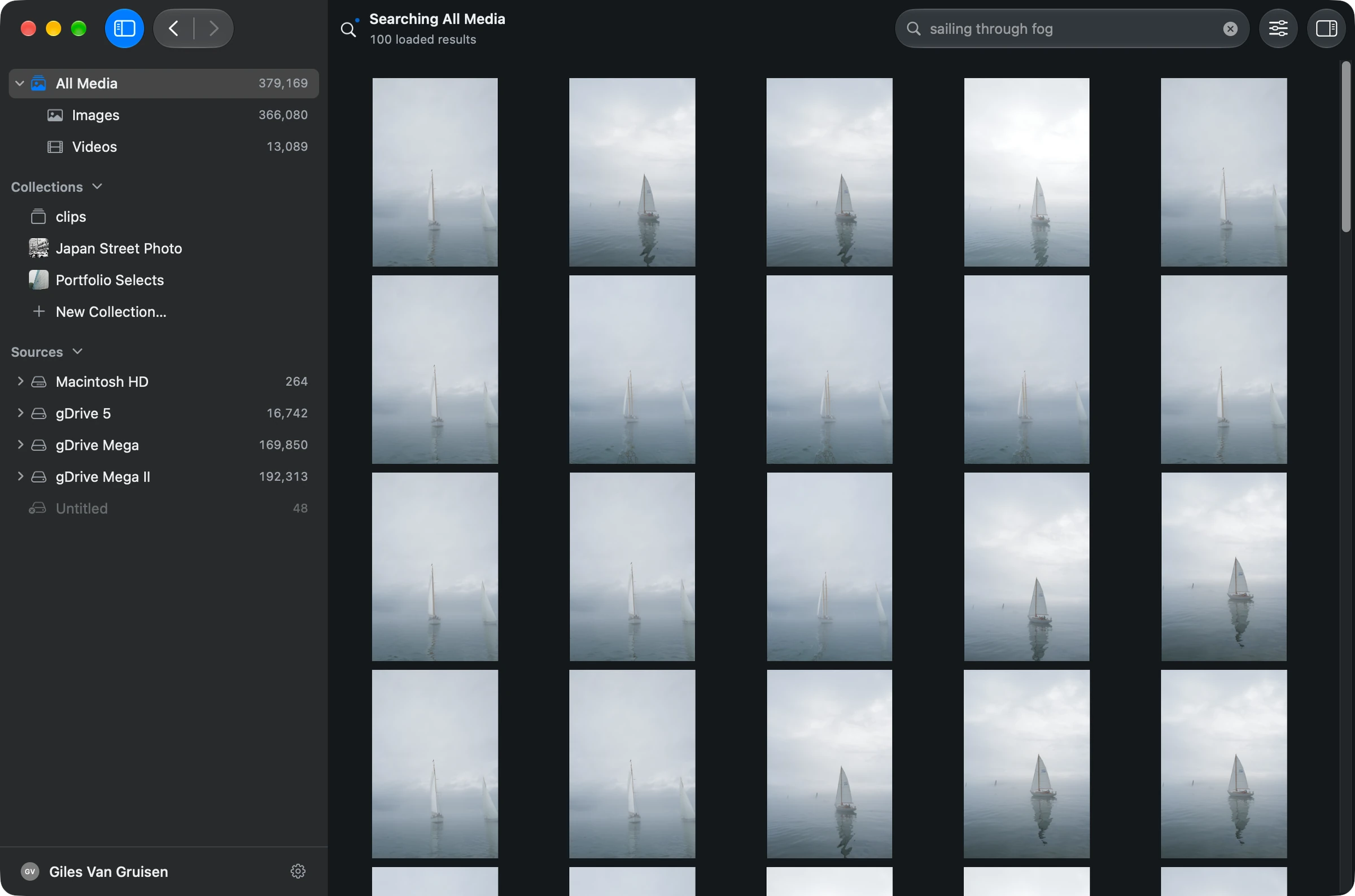
Select a result and press Space to enlarge it. Use ← and → to browse the enlarged results, then press Space again or Esc to return to the gallery.
Refine the results
Adjust the search text to change what you’re looking for. For example, “sailboat” describes the subject; “sailboat in fog” adds a condition. You don’t need to add those words as keywords to your files first.

To narrow the results by recorded information, click the sliders button beside the search field to open Filters. Choose a field and value, such as a camera model. The available fields reflect the metadata in your media. Getting started shows the panel.
Use the search text for the subject or concept and Filters for details such as camera, date, or rating.
Return to browsing
Click the clear button at the right of the search field to remove the search text. Check Filters if you also want to remove any filters you applied.