Search an external drive
Browse photos on a connected drive and choose which folders Grain Photo scans. You can search within one folder or across the drive.
Scan the drive
- Connect the drive to your Mac.
- Under Sources in Grain Photo’s sidebar, click the arrow beside the drive to see its folders.
- Click the name of a folder to open it.
- If macOS asks for access, select the requested folder or drive and click Allow Access.
Opening a folder starts scanning its media and subfolders. Grain Photo reads the files where they are; it doesn’t copy them onto your Mac.
To scan the whole drive instead, Control-click it in the sidebar and choose Index Drive. Your current gallery stays open.
Getting started shows each of these steps, along with checking scan progress and choosing folders in Source Settings.
Search within the drive
- Select the drive under Sources.
- Enter a description, concept, or keyword in the search field.
- Press Return to see results from that source.
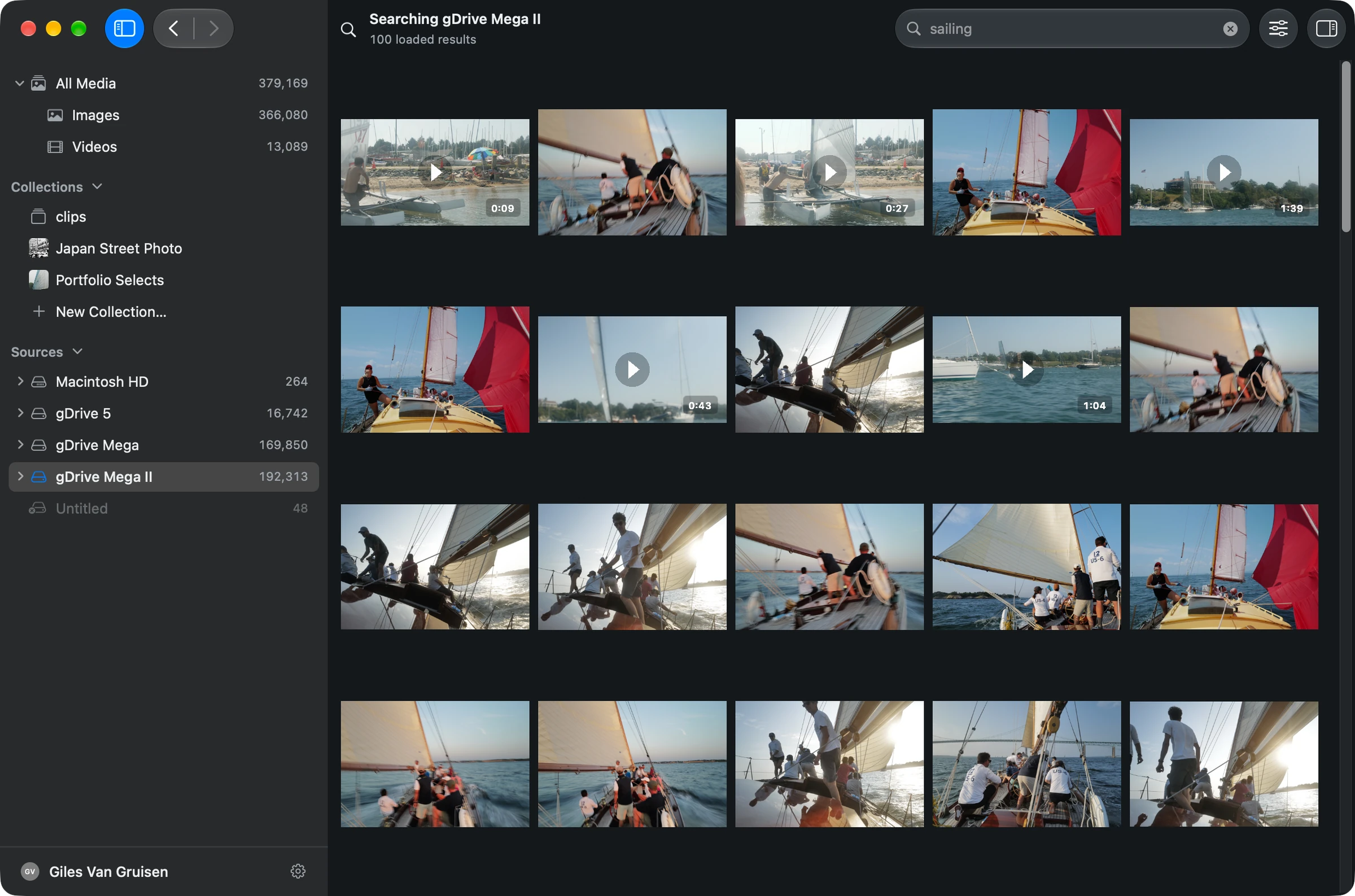
For ways to refine a query and use Filters, see Search for photos.
Locate an original
Control-click a result and choose Show in Finder to reveal its original file.
When the drive is disconnected
An indexed drive remains in the source tree when it is disconnected. Reconnect it when you need to open an original or reveal the file in Finder.