
Choosing software
Media Asset Management for Photographers and Filmmakers
Choose a media library for your drives, editing catalogs, or production team. Compare Grain, Peakto, Excire, Mylio, Iconik, and Axle AI by the work you need to do.
A new commission rarely starts with an empty library. There are photographs from an earlier shoot, interviews that still have something to say, and footage worth returning to. Good media asset management makes that work available for the next edit, pitch, or delivery, wherever its files live.
For photographers and filmmakers, choosing software starts with the relationship between that library and the tools you use to make things. You might need one view across drives, a way into several editing catalogs, or shared access for a production team. Those are different purchases, even when every product calls itself a DAM or MAM.
For work across drives on a Mac, compare desktop libraries such as Grain Photo and Peakto. For a photography-led workflow, include Excire Foto; for a library across computers and phones, include Mylio. For shared production storage, evaluate Iconik and Axle AI. Your RAW editor and client-review platform can remain part of the setup.
Choose around the work you need to do
| Your main requirement | A useful shortlist | What should decide it |
|---|---|---|
| Photos, RAW files, and footage across several drives | Grain Photo, Peakto | Search quality on your own work, offline previews, and the path from selects to the next project |
| A view across existing editing catalogs | Peakto | Compatibility with the catalogs you actually use and how their previews and metadata appear |
| Finding and selecting photographs with local AI | Excire Foto, Grain Photo | Description and similarity search, face tools, and how keywords move between applications |
| One library across computers and phones | Mylio Photos | Device support, sync arrangements, and where originals and previews will live |
| A shared video library over NAS, SAN, or cloud storage | Iconik, Axle AI | Permissions, proxies, transcript search, remote access, and editor handoff |
| RAW development alongside library management | Lightroom Classic or Capture One, with a separate library if needed | How comfortably finding and gathering work fits around your editing catalog |
| Client comments and approvals | A review platform such as Frame.io alongside the library | What clients can see, comment on, and approve |
These are shortlists by job, not a speed or accuracy ranking. The Photo and Video Software Guide covers the larger field, including free software, disk catalogs, and enterprise DAMs.
DAM and MAM in the workflow
Digital asset management often emphasizes metadata, versions, rights, and controlled access. Media asset management often emphasizes production footage, proxies, transcripts, and getting material into an edit. The categories overlap; the label alone will not tell you whether an application can find a spoken passage or browse a disconnected drive.
For your own shoots, a desktop media library may cover the important work: finding, reviewing, gathering, and exporting. For a production team, shared permissions and reliable access to the same material may be central requirements. Define the handoff as well as the search. A photographer delivering original selects and an editor requesting proxy footage need different outputs.
Desktop libraries for your photographs and footage
Grain Photo: one library across your drives
Grain Photo is our photo and video library for Mac. It catalogs your Mac, external drives, NAS, and Dropbox in place. Photographs, RAW files, and footage appear together, with collections that can gather work from several sources.
Search by description or a reference image, narrow by date and metadata, then review the actual picks. Saved previews and catalog information remain available when a drive is unplugged; reconnect it to open or export the originals. On macOS 26 with Apple’s speech resources installed, Grain automatically transcribes recordings on your Mac. Clips is in beta and lets you prepare ranges for export as MP4 files with SRT captions.
Grain’s MCP tools let an assistant search the library, read transcripts, and gather material into collections. You decide what it can access; information or previews sent to an external assistant fall under that provider’s policies. Local analysis and external assistance are separate parts of the workflow.
Consider Grain when: you want recent shoots and years of work available to the next project, across your existing storage and editing tools. The Mac app is $49 once after a seven-day free trial.
Peakto: a view across drives and editing catalogs
Peakto is worth evaluating when photographs and footage live in several application catalogs as well as folders. It reads supported catalogs and builds its own view without copying the masters. Its documentation describes working with catalog information while the source media is offline.
The important trial is your actual mix of catalogs. Check which versions are supported, how edited previews appear, and what happens when the drive containing the original is disconnected. A cross-catalog view can matter more than a long list of AI features if it saves you from opening several applications to assemble a selection.
Excire Foto: a photography-led library with local AI
Excire Foto offers local search for content, faces, scenes, and text, alongside selection and automatic keywording tools. The vendor describes it as a one-time purchase rather than a subscription.
Include it when finding and organizing photographs is the main job. Test both retrieval and metadata handoff: finding a frame by description and delivering keywords another application can read are related but separate requirements. The broader guide explains the distinction between AI search and keywording.
Mylio Photos: a library across your devices
Mylio emphasizes bringing photographs, video, and documents from devices and drives into a private library. It is a useful candidate when reaching the same collection from computers and phones is central to the workflow.
Plan which devices hold originals, which use previews, and what access you need while away from the studio. Compare that arrangement with a desktop library over your drives; the useful difference is how you want the library to travel with you. See Grain and Mylio compared.
Shared media asset management: Iconik and Axle AI
Iconik: shared records over storage you control
Iconik’s hybrid model connects on-premises storage and cloud buckets. Its Storage Gateway indexes local storage in place and generates proxies and keyframes on your hardware, while asset records, metadata, and governance live in Iconik.
Evaluate it when producers, editors, and other collaborators need a shared view of media across storage locations. In a trial, include the permissions and retrieval steps: can the right person find the material, access an appropriate proxy, and get the source into the edit?
Axle AI: a searchable production library on existing storage
Axle AI connects folders, NAS, SAN, and cloud storage, with cataloging, proxy generation, transcription, and visual search. Its product options include on-premises, private-cloud, and hosted processing.
It belongs on the shortlist when you want a production library around existing shared storage. Choose the deployment and processing arrangement deliberately, then test the path from a transcript or visual match to the editor who needs the footage. A team system earns its place through that whole path, including the people who are not cutting the film.
Keep the editor and review workflow that fit
If Lightroom Classic is where you develop RAW files, its Smart Previews let you continue editing photographs without the originals attached. A separate media library can help you choose photographs and footage across sources before bringing a selection into the next project.
Likewise, Frame.io provides file sharing, review, and approval workflows. A library for finding source material and a workspace for client feedback can serve different stages of the same commission. Choose the connection between them around the files and decisions you need to hand over.
For finishing tools and transcript-led assemblies, see AI video editing software for photographers and filmmakers.
Try one real brief before moving the whole library
Use a brief that draws from more than one shoot: a hospitality pitch with photographs from earlier commissions, or a short film combining an interview with location footage. Include material you know is there, plus a few less obvious alternatives.
- Find it across sources. Search a subject, a visual treatment, and a spoken phrase. Check what the software searched and which sources were left out.
- Review and gather it. Compare the full photograph or recording, keep the source identity and timecodes, and assemble a selection across drives.
- Disconnect a drive. Check which previews, metadata, and search results remain available, and how the software asks you to reconnect for originals.
- Make the handoff. Export the files, clips, captions, or project information the next tool needs. Open that result in your real editing workflow.
- Repeat with a collaborator, if needed. Use their actual access level to test finding, reviewing, and retrieving the same material.
The screenshot below is a recorded Grain search from an existing library, showing the kind of source material you can use for that evaluation. It is not a comparison benchmark or a measured time saving.
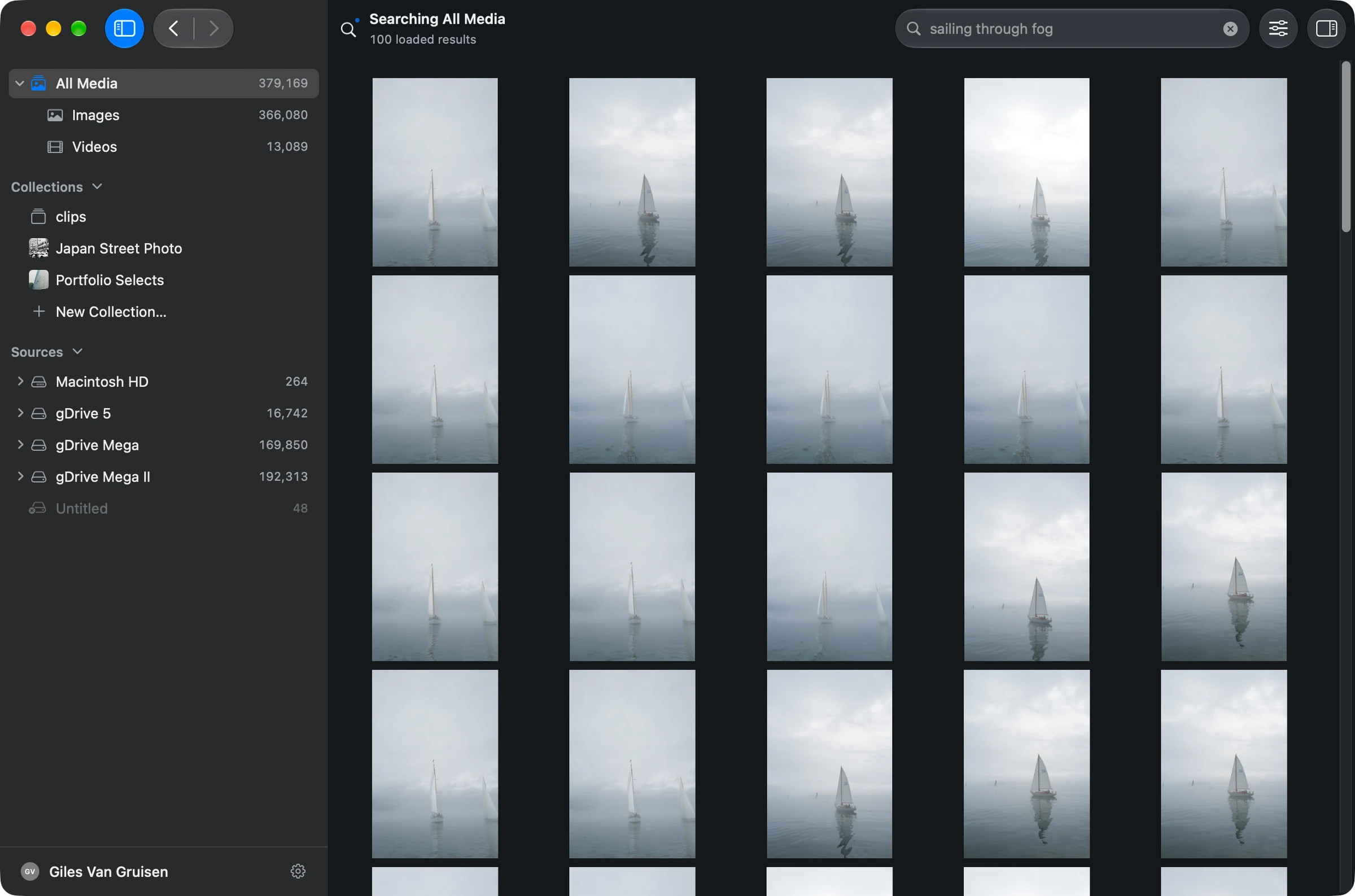
Start with a folder you already work from, or follow the external-drive guide to try this with Grain. Use the resulting selection in an actual edit or pitch before deciding how much of the library to bring into the workflow.
Sources and review
This is an editorial buying guide from the makers of Grain Photo. The product descriptions above were checked against the linked vendor documentation on November 17, 2026. The fit recommendations are our editorial judgment; they are not hands-on comparative accuracy or performance results. The proposed briefs are examples to try, and the Grain screenshot is an existing capture, not a new test of the current build.
For a closer look at disconnected sources, compare Mac media libraries for external drives. For a broader product inventory and detailed pricing models, continue to the Photo and Video Software Guide. We review changes to supported storage, processing, handoff, and licensing when revising these recommendations.