
Stories
Finding a photograph across years of shoots
Last updated November 10, 2026
“Sailing through fog” describes a picture. It doesn’t name a client, a shoot, a folder, or a file. That makes it a useful example of another way into an archive: start with what you can see in your mind, then narrow where you look.
For our guides, we recorded two searches on October 5, 2026, using Grain Photo 1.1.1 and an isolated copy of a working library. The captures show a library count of 379,169 photos and videos. They document actual results, without measuring search speed.
A description across the archive
The first capture shows sailing through fog in the search field, All Media selected, and sailboat photographs in the results. You can see the complete window in Search for photos.
The phrase combines a subject and a condition. “Sailing” alone leaves room for sunny races, harbors, crews, and open water. Adding “through fog” asks for a more particular look. Grain Photo analyzes the images on your Mac, so the description doesn’t have to be a keyword you previously added.
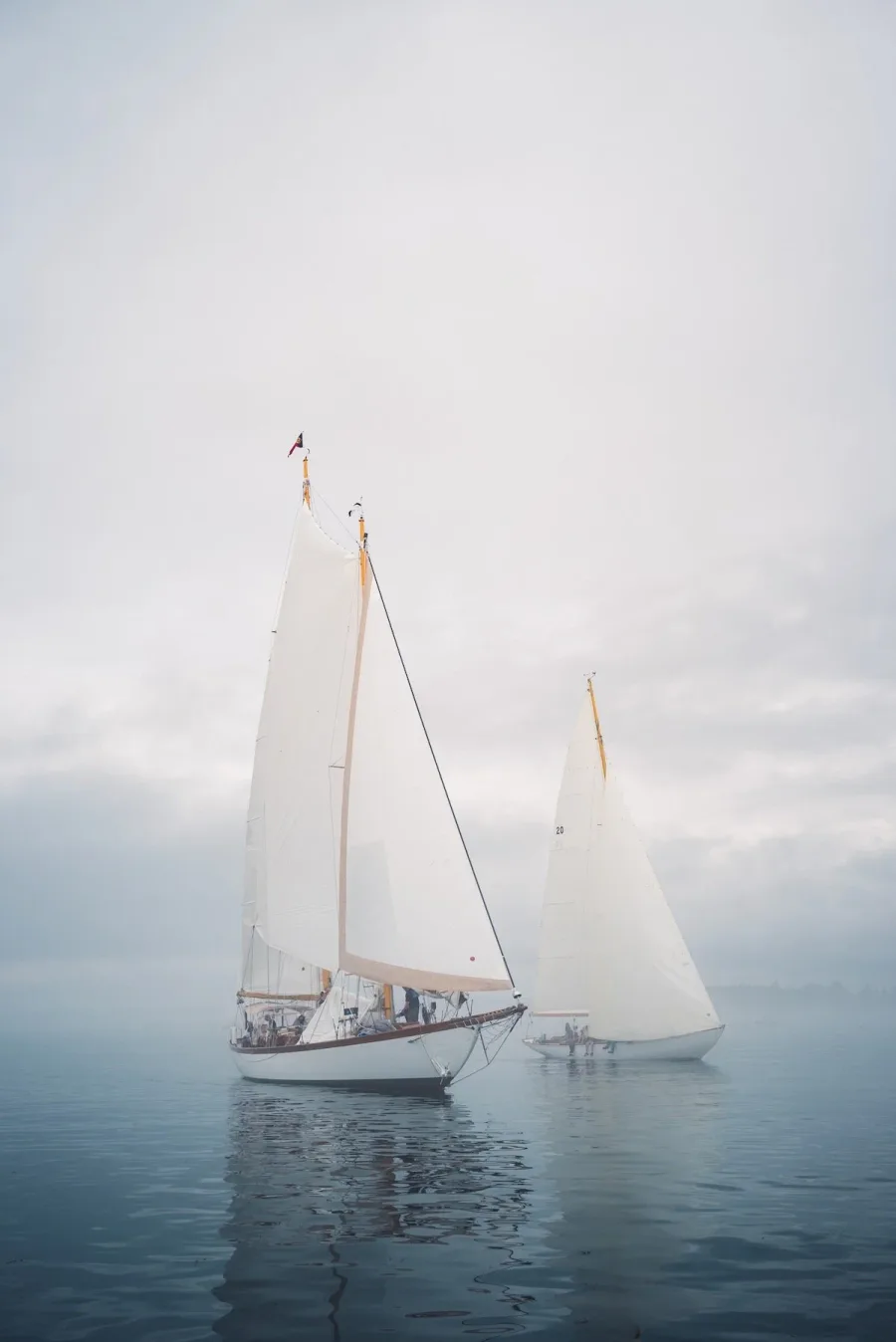
A description is a way to find candidates. It does not establish that the first result is the particular frame you had in mind. Change the wording when a useful visual detail is missing, or add a date or camera filter when you know something more precise.
A broader phrase within one drive
The second capture shows a different search: sailing within “gDrive Mega II,” a source containing 192,313 media files. The external-drive guide shows that result.
These are two examples from the same recording session, rather than a documented sequence of finding one particular original. Together they show two controls you can use independently: the words describe what to look for, and the source sets where to look.
When you know the drive, choose it before searching. When you don’t, start across your included sources. Check offline inclusion if the work may be on a disconnected drive; an offline source’s cached preview and its original have different availability. Sources and navigation explains that distinction.
From a candidate to a useful photograph
After a search, the next step is to inspect the candidate. Enlarge it, move between nearby results, and check the file information. With the original available, Show in Finder takes you to its folder, and Open With lets you continue in your editor.
A collection can hold the selection you want to revisit. The photographs stay in their existing locations; the collection gives you another way back to them.
The useful result is a route from a visual idea to work already in your archive. These captures show one example. To try the workflow with a familiar shoot, start with Getting started.