
Reference
Export and hand-off
Last updated November 10, 2026
Grain finds the work, and the apps you already use finish it. Everything in Grain is still a file on your drive, so a hand-off means pointing the next app at the original or exporting a copy of it.
Reach the original
- Open With your editor, or Show in Finder
- Drag a selection into another app
Export a copy
- Export Original… for one file
- Export Originals… for a selection
Copy a reference
- A preview for a deck or a message
- Filenames and paths for a script, a list or an agent
Because Grain catalogs your folders in place, there's no "get it out of the library" step. The photo you found is the original on your drive, and every action here starts from it.
Open it where you edit
Control-click a photo or video and choose Open With to open the original in another app. The list shows the apps that can open that kind of file, with your default first. Show in Finder reveals the file in its folder instead.
You can also drag selected items straight into another app. The drag carries the original files, and the app you drop on decides what to do with them.
Export copies of originals
When the next step needs its own copy, export one. Grain copies the original file byte for byte and leaves the one on your drive alone.
One item
- Export Original… from its menu, or from the toolbar while it's enlarged
- Choose a name and a place
A selection
- Export Originals… from its menu or the selection dock
- Choose a folder; Grain makes a new Grain Photo Export folder inside it
In a multi-file export, files with the same name are numbered, "IMG_0042 (2).jpg", so nothing overwrites anything. Finder shows the new folder when the export is done.
Exports need the original, so a drive has to be connected. A disconnected drive can still show its photos from cached previews, but those aren't the files. Plug it back in to export.
Copy for the next step
The Copy submenu puts something on the clipboard for whatever you paste into next.
| For | On one item | On a selection |
|---|---|---|
| The files themselves | File | Files |
| A picture to paste into a deck or a message | Preview | |
| A list of names for a client or a shot list | Filename | Filenames |
| Exact locations for a script or an agent | Path | Paths |
Copying files is the same as Edit → Copy (⌘C). If a file can't be copied, Grain offers to copy its preview instead.
Back to where it was shot
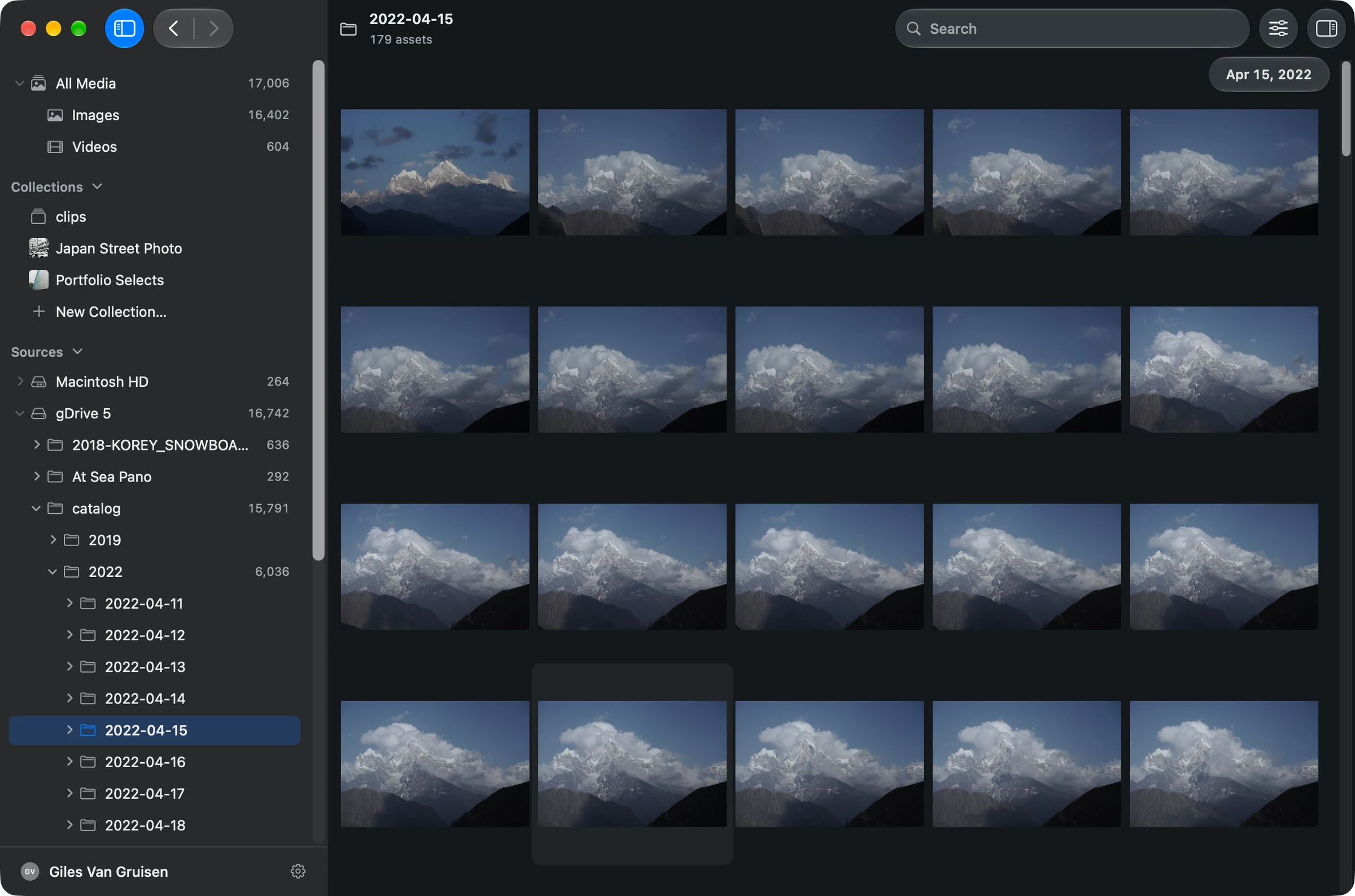
A search result is one frame out of a shoot. To see what was around it, use the navigation items in its menu: Show in Folder opens the folder it's in, Show in followed by the drive's name opens the source, and Show in All Media puts it back among everything else.
Hand off video selects
For footage, the hand-off is usually clips rather than whole recordings. Export Clips… writes each clip as an MP4 with a timed SRT caption file, plus a Grain Clips.json manifest, into a local folder you choose. Add, trim and export clips walks through it.
From there, an agent with access to that folder can string the clips into a rough cut, and an editor can bring them into a timeline. AI workflows shows how people put agents to work on Grain's hand-offs.
What a hand-off never changes
- Exports and copies are new files. The original stays where it is, untouched.
- Ratings, labels and tags you set in Grain stay in its catalog. They aren't written into exported files or your originals.
- What an agent reads from Grain goes to that assistant's provider. See how Grain handles your files.
Every control, at a glance
- Export originals
- Hand off the actual source files. Choose Export Original for one asset or Export Originals for a selection. Multiple-file export creates a new Grain Photo Export folder and numbers duplicate filenames to preserve existing files.
- Copy a preview
- Bring a visual reference into another task. Use Copy Preview from an asset’s menu to put its preview on the clipboard.
- Copy files, names, and paths
- Keep selections useful beyond Grain. With several items selected, Copy ▸ Files, Filenames or Paths hands off the whole selection.
- Open in your preferred app
- Keep editing in the tools you know. Use Open With for an available original, or Show in Finder to reveal its local file.
- Return to a file’s context
- See what was shot around a search result. Use an asset’s navigation actions to show it in its folder, source, or All Media.
- Drag files to another app
- Take a selection into your next workflow. Dragging selected local assets carries original file URLs for other native apps. The destination app decides how to use those files.