
Reference
Filters and dates
Last updated November 10, 2026
Filters narrow whatever you're looking at, a folder, a search or All Media, to the work that fits the brief. Each one is a single rule, like a date range, a rating or a camera, and the rules apply together.
Move through it, or narrow it
A big library has two kinds of "find". Sometimes you know roughly when something was shot and just want to get there. Sometimes you need only the work that meets a brief: last spring, four stars and up, shot on the A7S III. Grain has a tool for each.
The date handle
- Drag it to scroll the gallery in its current order
- Everything stays in view; you just get there faster
Filters
- Hide everything that doesn't fit
- Every rule applies at once, and each one clears on its own
Filters work on any gallery, including search results. Search for "beach", then filter to a single summer, and you have a short list to review.
Rules that stack
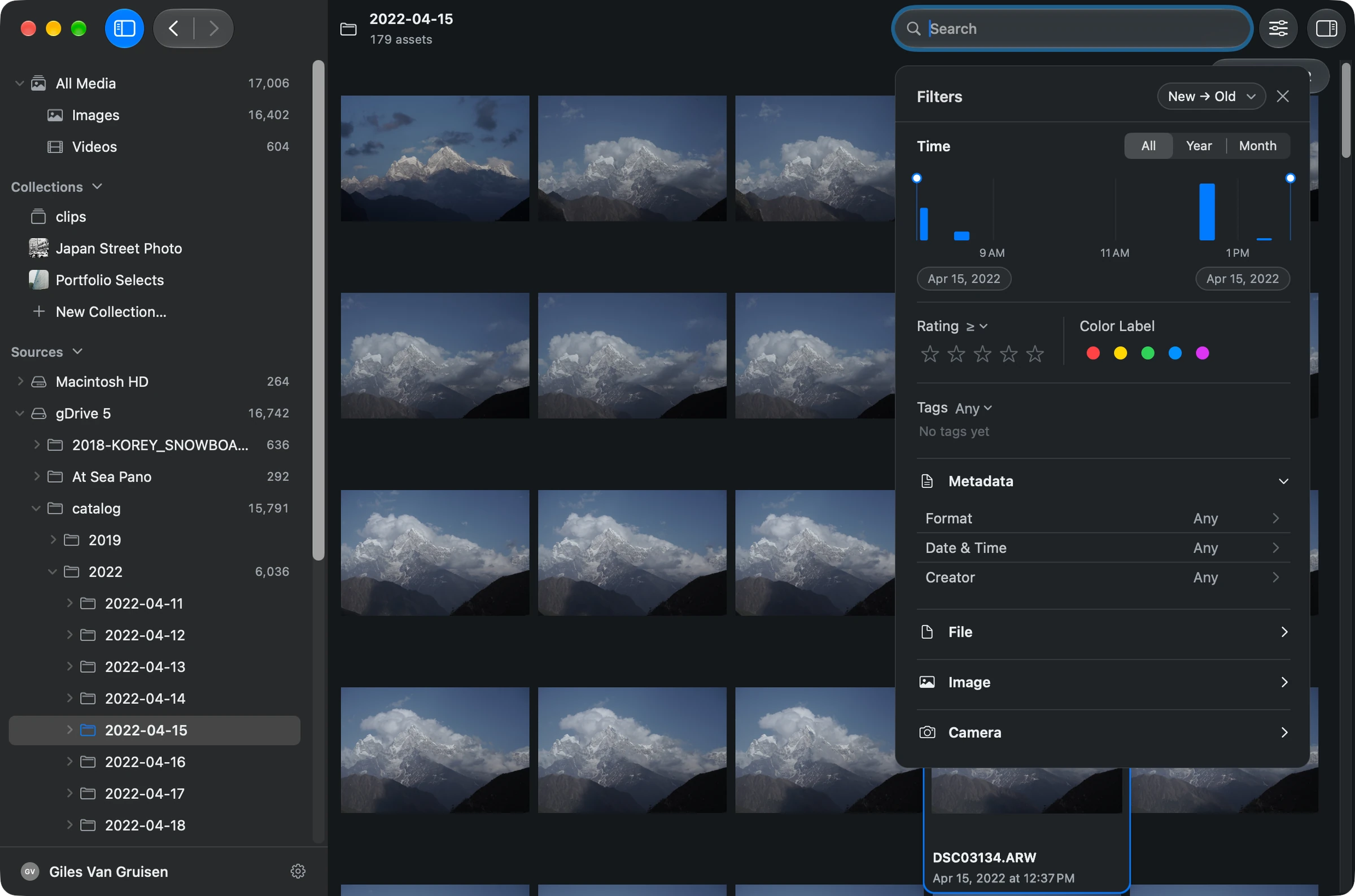
Click Filters in the toolbar to open the panel. It's arranged top to bottom: Time, Rating, Color Label, Tags, then any other fields you add under Custom.
Think of each filter as one sentence in a brief. Add as many as you need; the gallery shows only work that matches all of them. To widen the results again, clear one rule and keep the rest. Reset clears everything at once.
Dates on a chart
The Time chart shows when your work was made, as bars. Point at a bar to see its dates and how many photos and videos it holds.
- Click a bar to filter to that period.
- Drag either handle to move a boundary, or drag the selected range to slide it along.
- Switch between All, Year, Month and Day to change the chart's scale. All spans your whole library; the others show the last year, month or day, up to today.
When a brief has exact dates, use the date chips under the chart. They open Date & Time, where you type precise bounds. It's also the way to set dates from the keyboard.
Rating, color label and tags
These follow the review system you may already use in Lightroom or Photo Mechanic. Grain reads ratings and keywords from XMP and IPTC, so an old cull carries over.
Rating
- Choose a star count, then At Least, At Most or Exactly
- Click the active star again to clear it
Color Label
- One of the five standard labels
- Clear it to include any label
Tags
- Toggle the tags you want
- With two or more chosen, pick Match any or Match all
- Show More reveals the rest
Camera, file and custom fields
Under Custom, type a field name such as camera, ISO, resolution or codec, and choose it from the suggestions. Then choose a comparison and enter or pick a value. The fields on offer depend on what's in your catalog's metadata, including any custom fields you've added.
This is where a creative search meets a practical one: "sailing", on one camera, at 4K or above, in one gallery. A filled-in row shows its value and a Clear control, so you can drop one constraint without rebuilding the rest.
Where to go next
A filtered gallery is usually the start of a selection. To gather the results in one place, see collections and metadata.
Filters only change what's shown. They never touch your files, and the ratings, labels and tags you set in Grain stay in its catalog rather than in your originals.
Every control, at a glance
- Scroll with the gallery’s date handle
- Move through a large result set. Drag the floating date handle to scroll through the gallery in its current sort order. Use Filters when you want to narrow the results to particular dates.
- Photo and video date filters
- Narrow the library to the time you need. Open Filters to set a date range for the photos and videos in your gallery. Combine it with other filters to refine your selection.
- Time range shown in Filters
- Adjust the date chart’s scale. Use All, Year, Month, or Day in the Filters panel to change the time span shown by its date chart. Set a range in the chart to filter your gallery.
- Inspect dates in Filters
- See which dates a chart bar represents. Point at a populated bar in the Filters time chart to see its date range and asset count.
- Filter to a date interval
- Show media from a specific period. Click a populated bar in the Filters time chart to set the date range. Other active filters still apply.
- Drag a date filter range
- Narrow a period without typing dates. Drag either range handle in the Filters time chart to change a boundary. Drag a selected range to move it. This changes which media appear in the gallery.
- Enter exact dates
- Match a client brief or a known shoot window. Open the date chips below the filter histogram to enter precise bounds in Date & Time. This also provides a keyboard alternative to dragging.
- At least, at most, or exactly
- Review the right level of selects. Choose a star rating and its comparison. Select the active star again to clear the rating filter.
- Color-label filters
- Follow the review system you already use. Filter by one of the five standard color labels. Clear the selection to include any label.
- Match any or all tags
- Make a selection broader or more specific. Toggle your catalog tags and choose Any or All. Show more reveals additional tags without leaving the panel.
- Camera, file, image, video, and audio filters
- Combine a creative idea with practical requirements. Add a field in Filters, choose its comparison, and set a value. Available fields include camera, ISO, resolution, codec, and custom fields, depending on your catalog metadata.
- Find a filter field
- Add the constraint you need. Type a field name in the empty filter row and choose a suggestion. Then choose the comparison and enter or select its value.
- Remove one constraint at a time
- Widen results without rebuilding your search. A configured filter row shows its value and a clear control. Clear that field while retaining the rest of your selection.